🦑 Simplify testing your local environment on physical devices by using Squid
Route a phone's traffic through SquidMan on your Mac so cookies, headers and hosts-file entries keep working when you test on real devices.
By Dennis Bruijn · · 2 min read · #testing #mobile #devtools
Originally published on Medium.

Big companies use a lot of HTTP cookies 🍪 to store all the information you need to interact with the application in a proper way. Besides using cookies there are other things to take care of like setting HTTP request headers or tweak your application to fix HTTP access control issues.
If you are working on your local machine and have setup all these things everything works well but when you need to test it outside of this machine i.e. on a physical Android or iOS device it’s a hard to get it all working.
Here’s where squid comes in
squid : Optimising Web Delivery
Basically, squid allows you to forward all your device requests through your machine so everything you’ve set stays set.
Squid is a fully-featured HTTP/1.0 proxy which is almost (but not quite — we’re getting there!) a fully-featured HTTP/1.1 proxy. Squid offers a rich access control, authorization and logging environment to develop web proxy and content serving applications.
How to install it?
I would recommend using SquidMan for configuring and running, SquidMan is a graphical installer and manager for the Squid proxy cache.
You can install SquidMan trough a brew cask
$ brew cask install squidman
Configure squid to use your OS host file
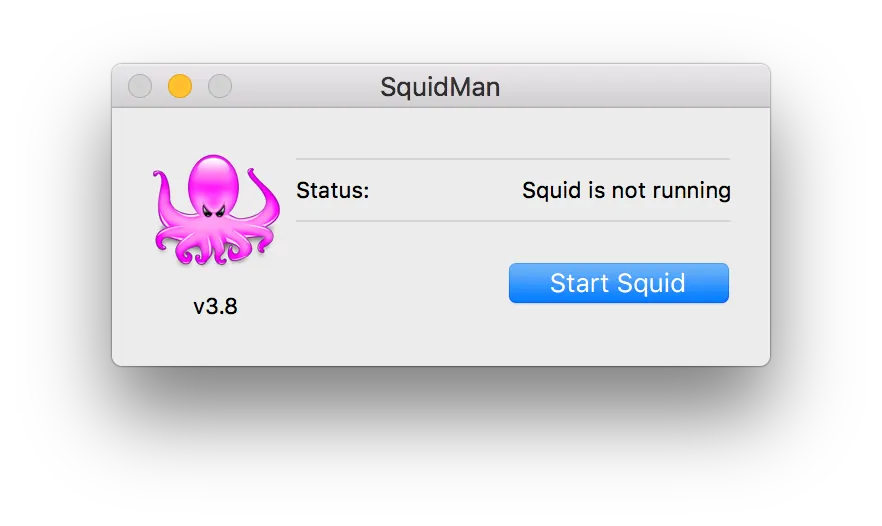
When you launch SquidMan you would see the following window, go to SquidMan > Preferences to configure it.
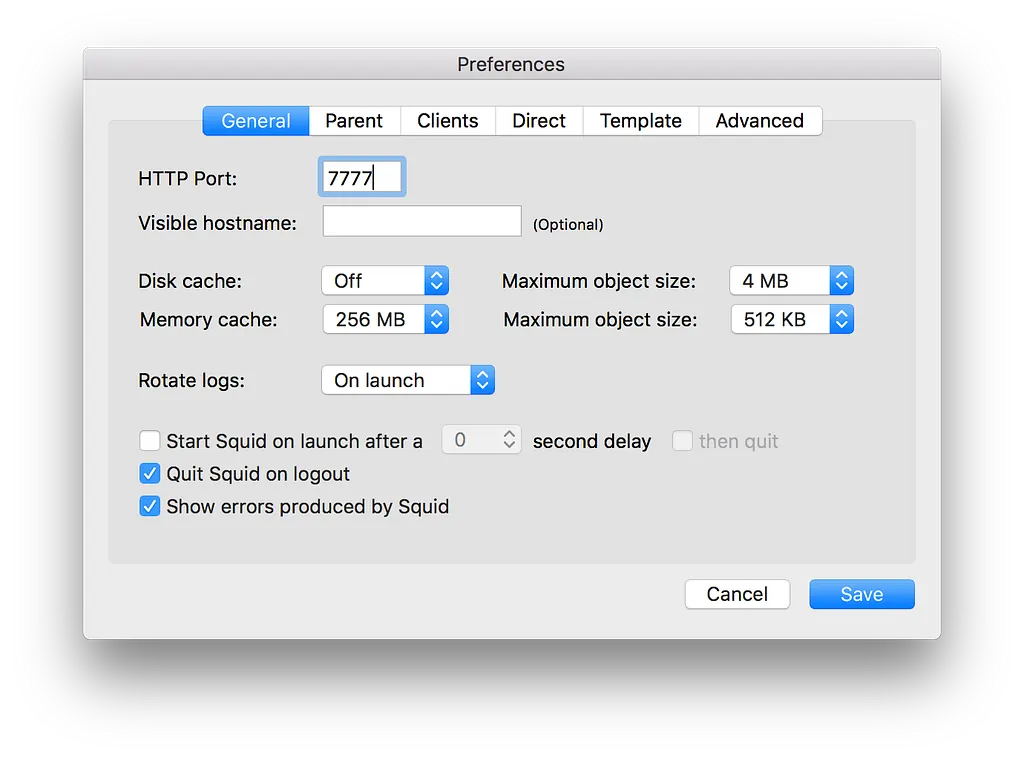
Once there go to General and change the port a less used one i.e. 7777.
After that go to template and add the following, if not already set.
#host file
hosts_file /etc/hosts
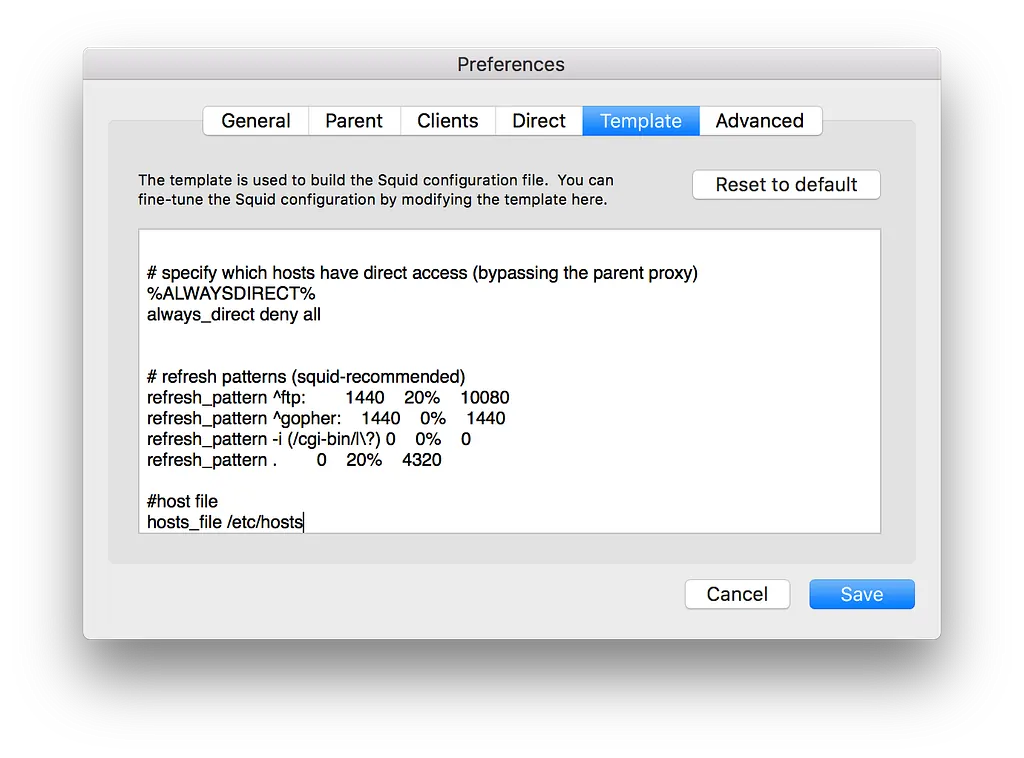
This means that SquidMan would use your local machine it’s hosts(file) to route the traffic trough.
Now press the save button and start SquidMan to use it.
Configure squid on your iPhone to forward traffic
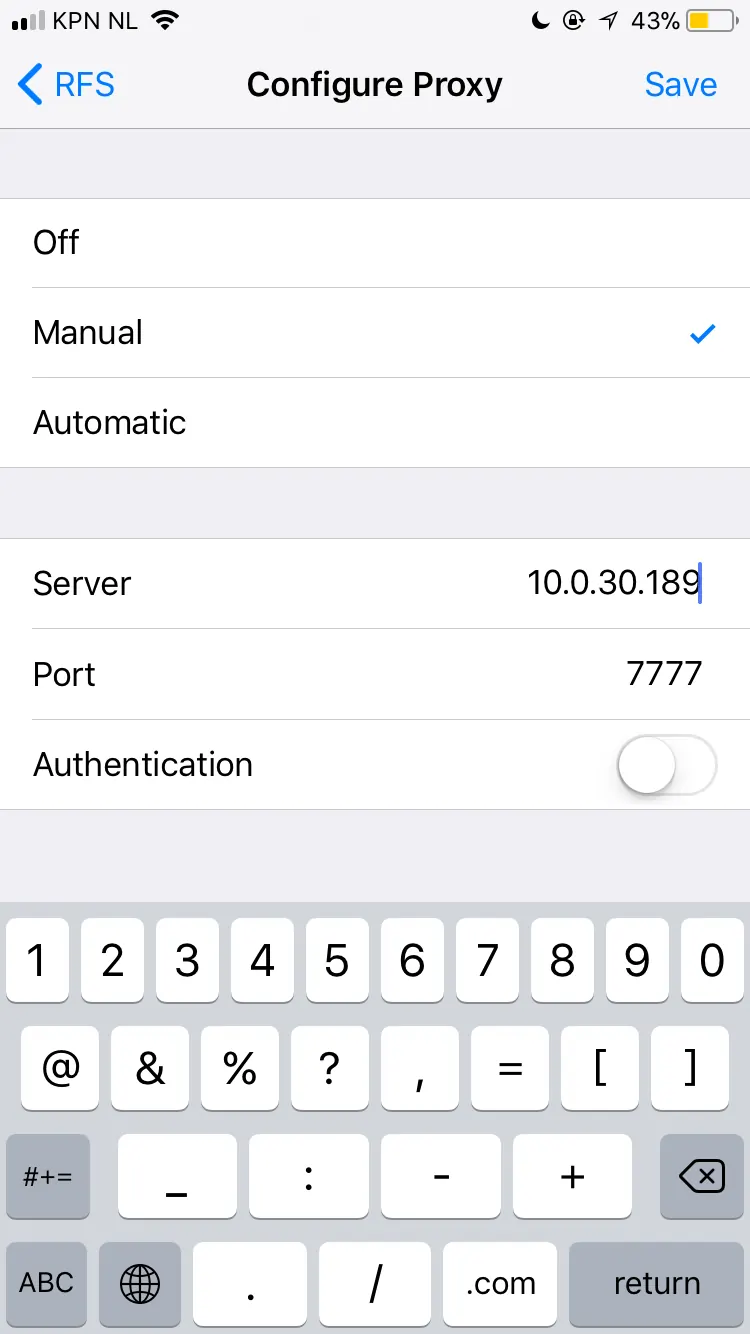
Unlock your phone, go to Wifi networks (make sure you are on the same network as your machine) and press the ( i ) icon next to the network. This will open up network settings.
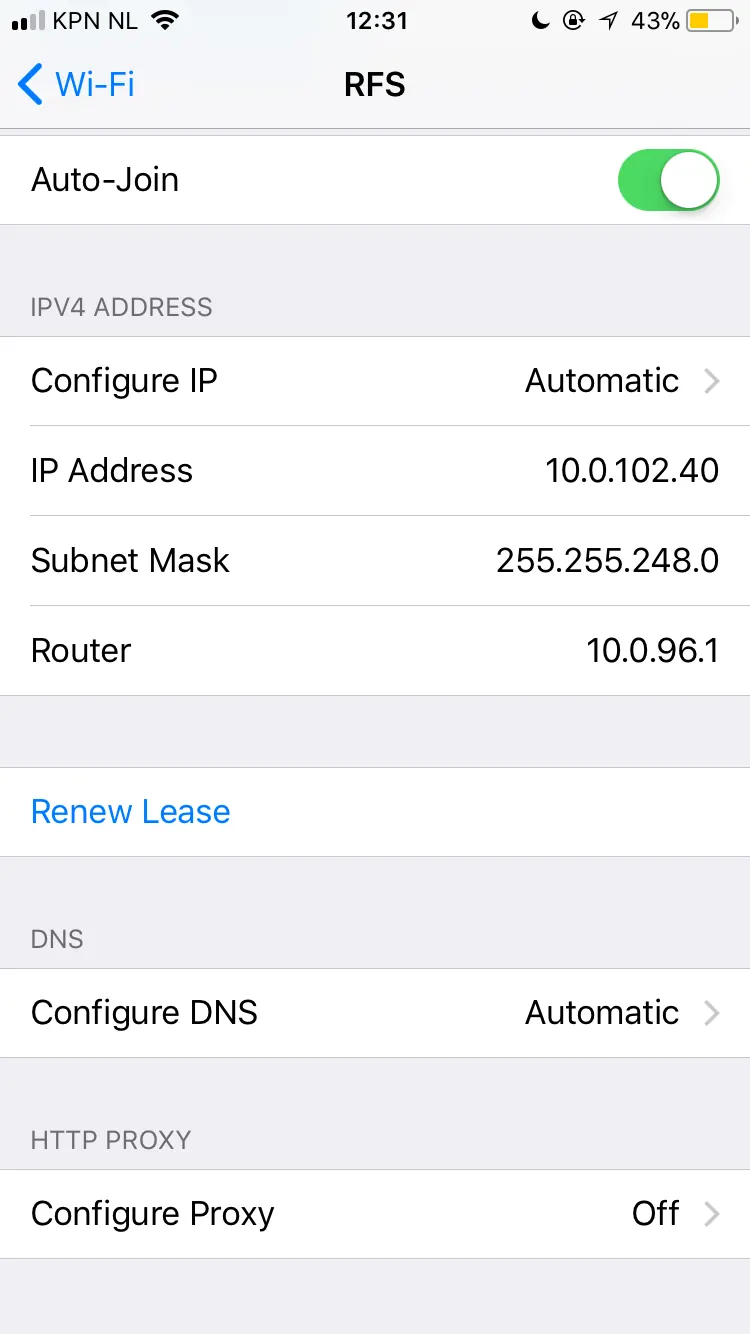
Click on configure proxy Manual and configure based upon your SquidMan settings.
Configure squid on your Android phone to forward traffic
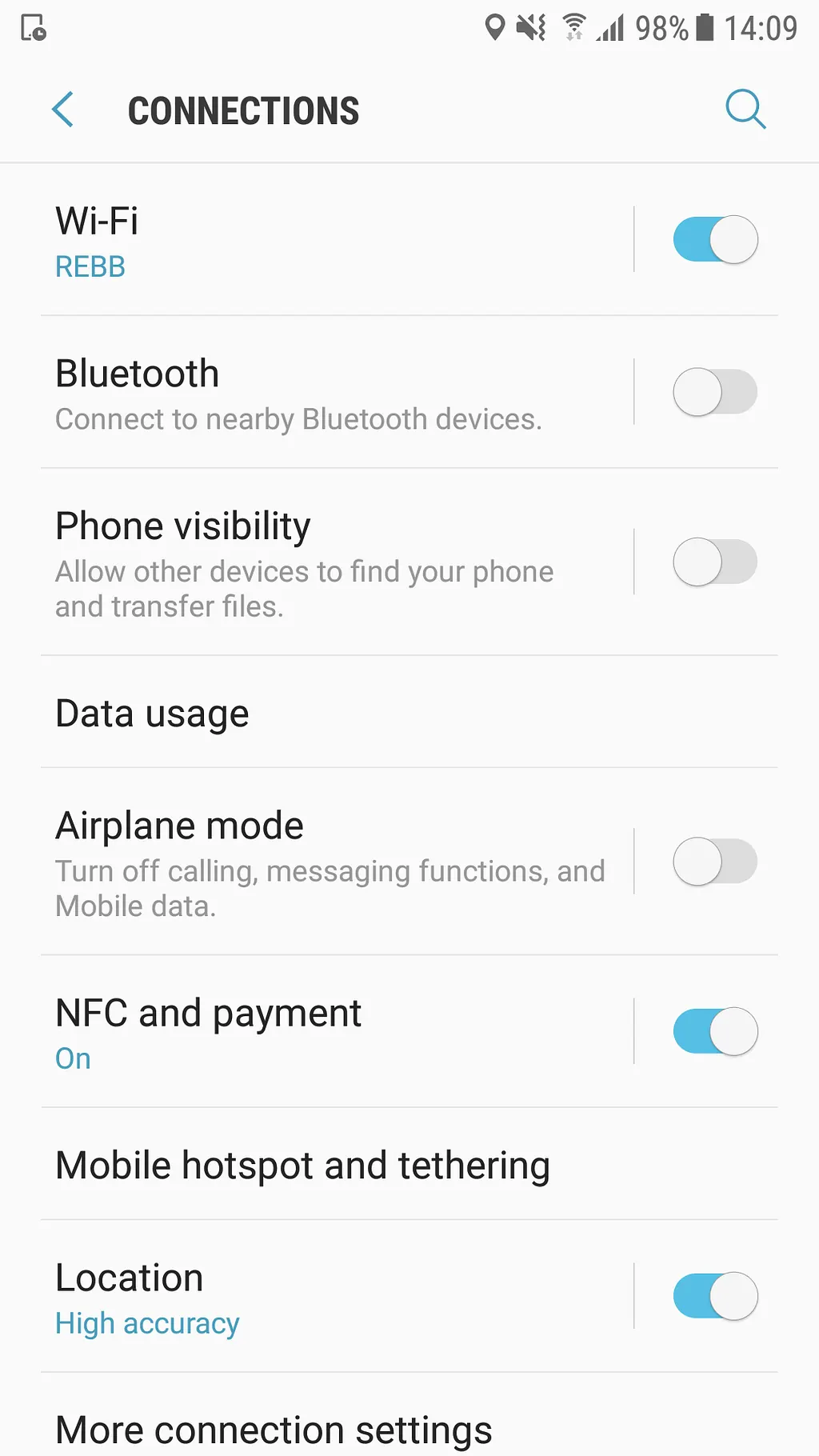
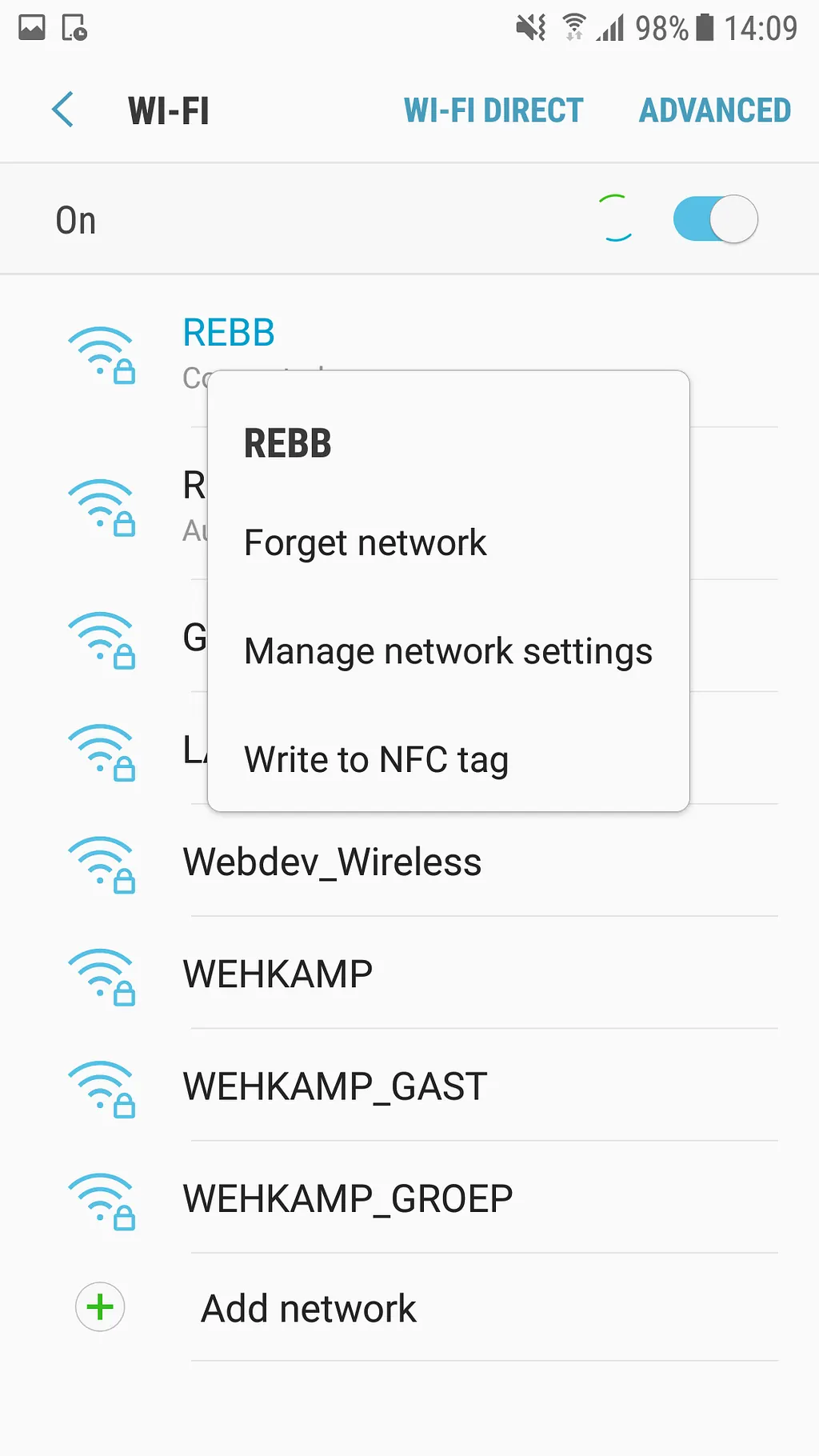
Unlock your phone, go to Connections (make sure you are on the same network as your machine) and long-press the SSID (network name).
This will open up a pop-up, click on Manage network settings.
Another screen pops-up.
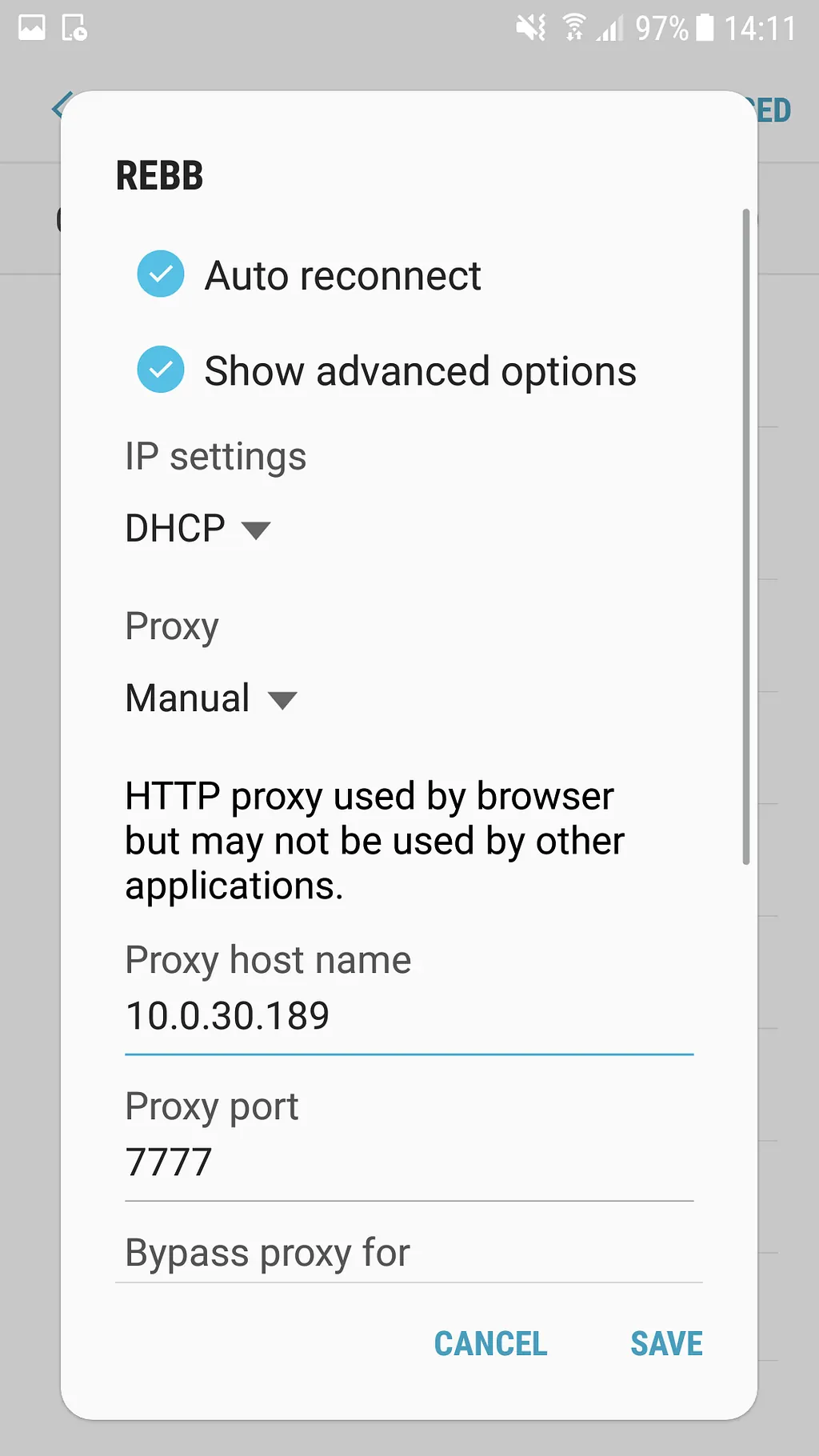
Click on show advanced options, proxy Manual and configure based upon your SquidMan settings.
Press save and you’re done you can now visit your http://local-development-url.host on your mobile device through a proxy on your local machine. 🙌🏼 🚀