🔦 How to create a PWA with a 90+ score in Google Lighthouse using Ionic 2
How I built an Ionic 2 Progressive Web App that scores 99 in Google Lighthouse, from enabling the service worker to Firebase Hosting.
By Dennis Bruijn · · 4 min read · #pwa #ionic #performance #firebase
Originally published on Medium.

I just created a Progressive Web App that scores 99 out of 100 in the Lighthouse auditing report. I used Ionic 2 (Angular) to get the results I wanted, here’s how I did it:
Install Ionic globally
To use the Ionic CLI we fist need to install Ionic globally.
$ sudo npm install -g ionic cordova
Create a new blank Ionic 2 project
After that we can make a new Ionic 2 project by executing the following command using the Ionic CLI.
$ ionic start MyPWA blank — v2
Serve the application
Execute the ionic serve command to serve the application in your browser. Serving the application in the browser automatically creates a web based build of your Ionic project.
$ ionic serve
Install Lighthouse for Google Chrome
Click here and install Lighthouse. After installation and icon will appear.

Run Lighthouse to generate a report
If you click on the Lighthouse icon it will do some tests and generate a report.
You need to close Chrome Developer tools to be able to run the test.
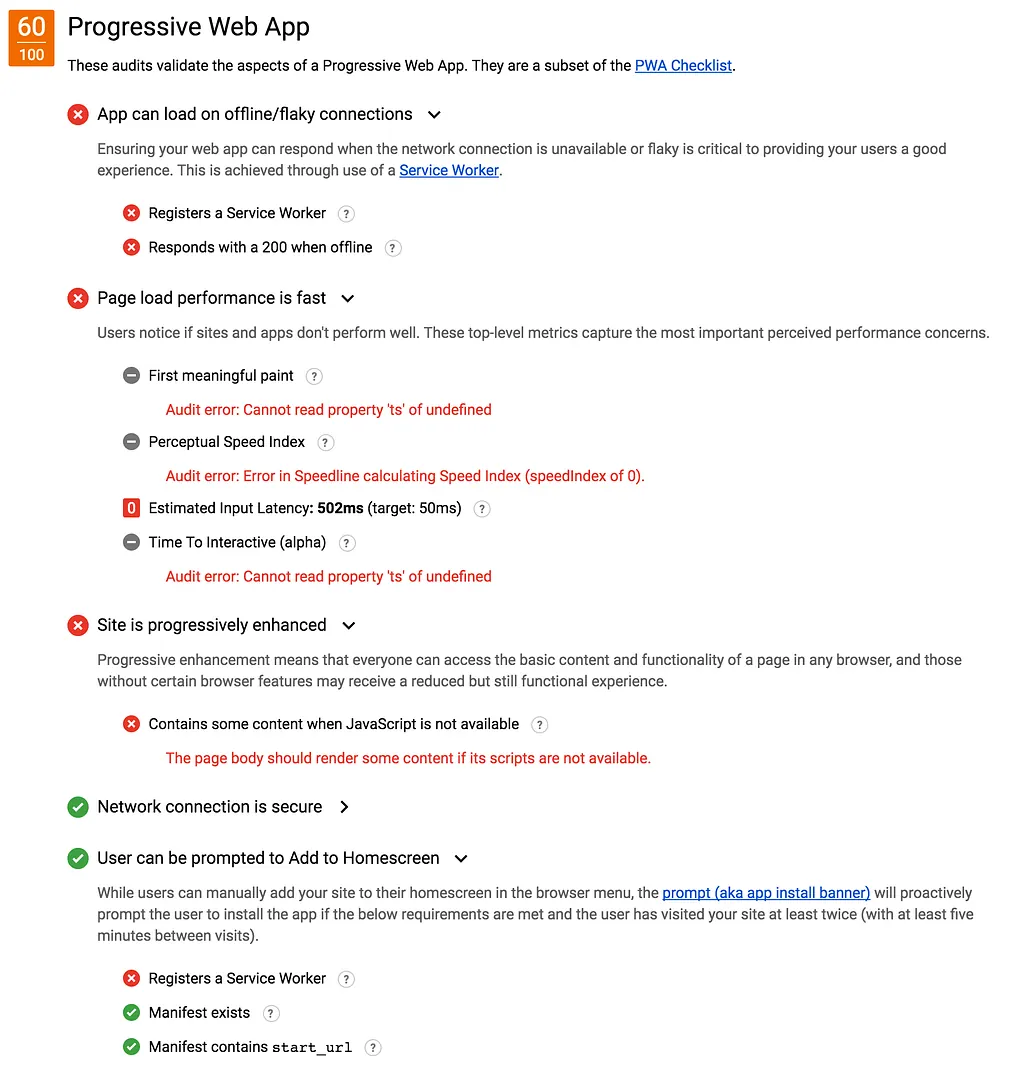
Optimize 📈
1. App can load on offline/flaky connections
Ensuring your web app can respond when the network connection is unavailable or flaky is critical to providing your users a good experience. This is achieved through the use of a Service Worker.
You can enable the Service Worker in Ionic by un-commenting the Service Worker part in the index.html
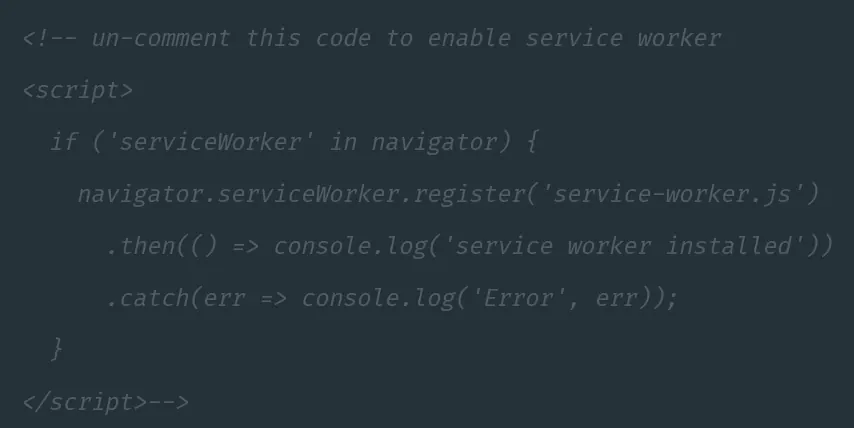
After enabling you automatically resolve the Service Worker fail under User can be prompted to Add to Homescreen
2. Site is progressively enhanced
Progressive enhancement means that everyone can access the basic content and functionality of a page in any browser, and those without certain browser features may receive a reduced but still functional experience.
We’re going to add some code to our index.html file to let the user know that they need to enable JavaScript to get the full experience. Ionic wouldn’t be able to provide a functional experience without using JavaScript.
<noscript>
  <h1>You don’t have javascript enabled.</h1>
  <p>Please enable it to get the full experience.</p>
</noscript>
4. Page load performance is fast
Users notice if sites and apps don’t perform well and that will give them a bad experience. To pass this point in the report let’s make a production build using Ionic CLI’s build command and the — prod flag.
$ ionic build — prod
Create a secure hosting environment using Firebase 🔥
Head to Firebase and create an account. Once your account has been created go to the Firebase console to create a new project.
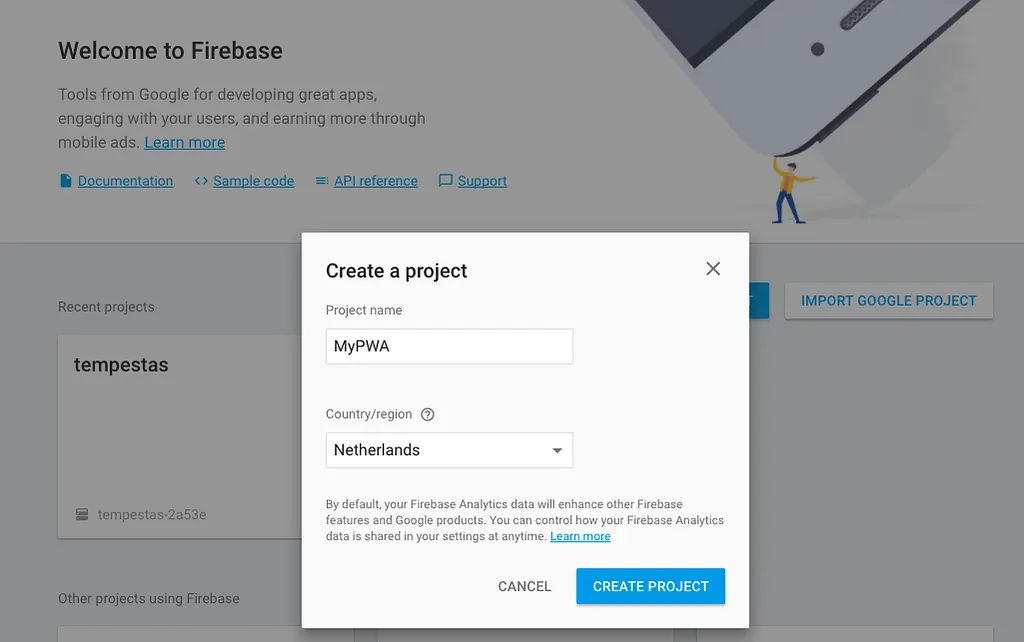
That’s it you’ve created your first Firebase project 🎉
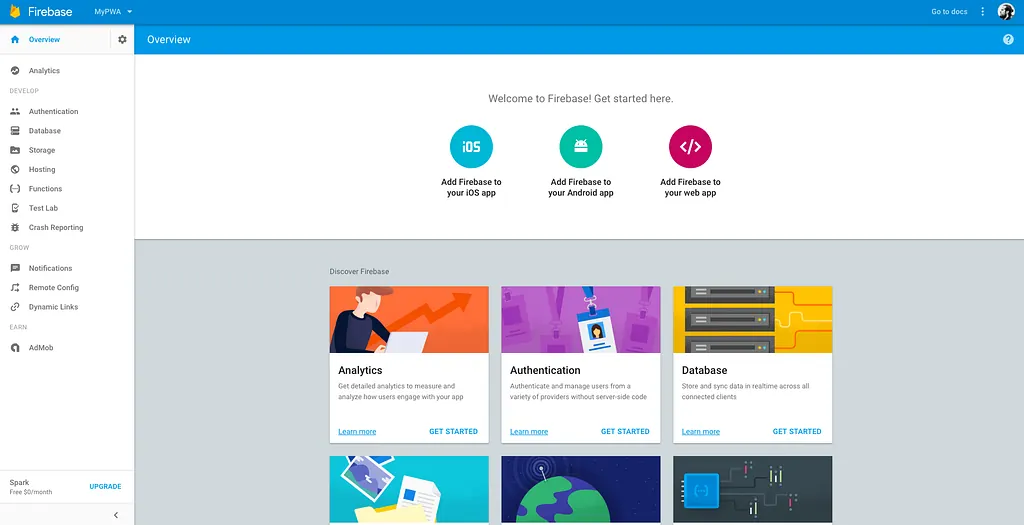
As you’ve might have noticed Firebase includes a lot of features from analytics, to cloud messaging to hosting. We are going to use the last one to host our PWA in a secure environment.
Deploy 📦
We can deploy to Firebase by using the Firebase CLI login, init & deploy commands. First, you need to login into your Firebase account (a web browser will pop-up).
$ firebase login
After that traverse to the right directory and execute Firebase init, select hosting and select the project we’ve created above.
$ firebase init
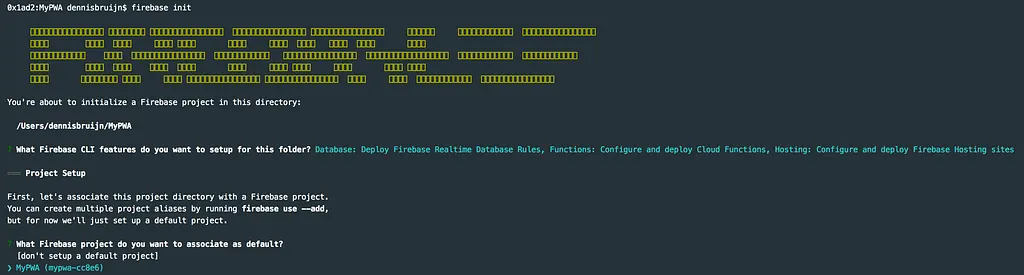
Set the www folder as default
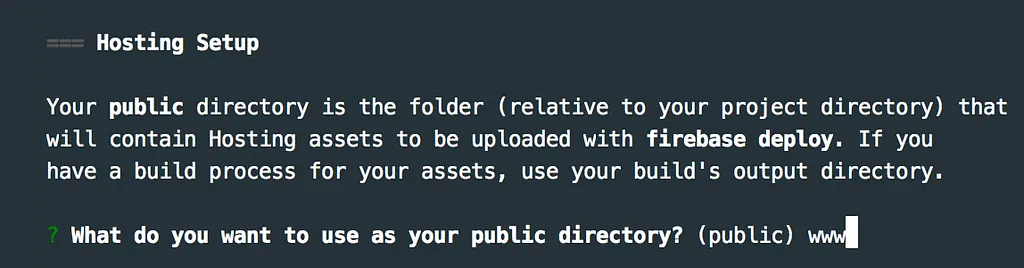
After initializing the project we can simply deploy the application to Firebase by executing.
$ firebase deploy
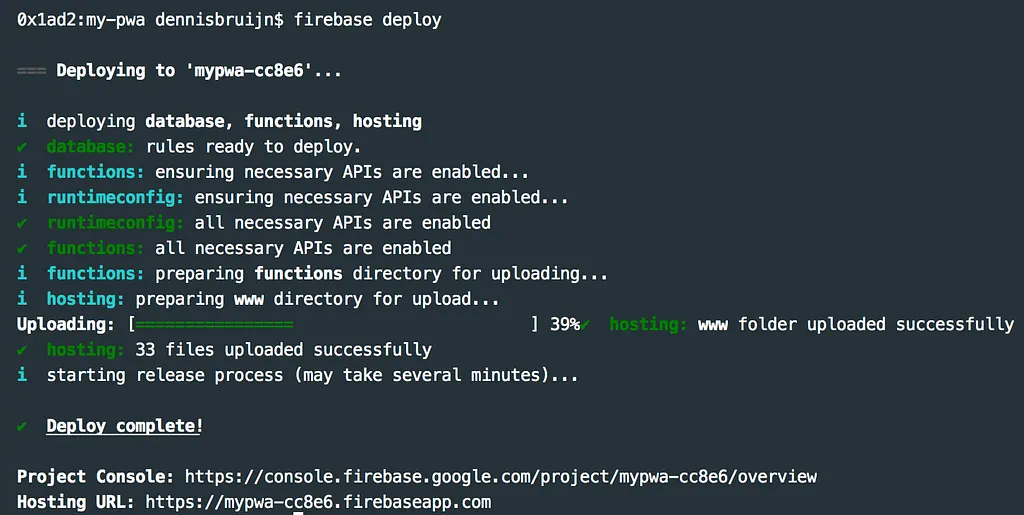
That’s it we’ve deployed our package 👍🏻
Run Lighthouse (again) to generate a report
Click on the lighthouse icon when in your Firebase environment, again it will do some tests and generate a report. This time, and most of the times it will generate a 90+ score.
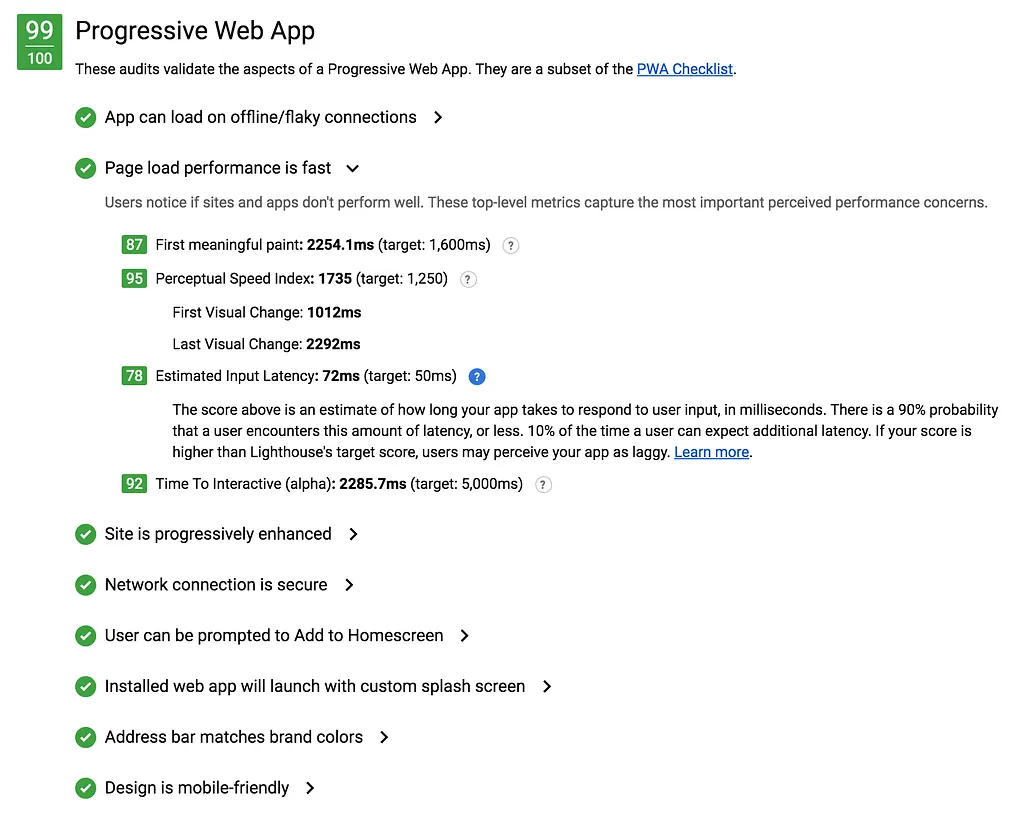
100 out of 100?
If you want to get a perfect score you should need to optimize more. Due to the way Ionic was build the first meaningful paint, perceptual speed index, time to interactive are higher than recommended. In my opinion, this wouldn’t be an issue but there’s always room for improvement.
We can measure our application by applying the RAIL method. RAIL is a user-centric performance model. Every web app has these four distinct aspects to its life cycle, and performance fits into them in different ways:
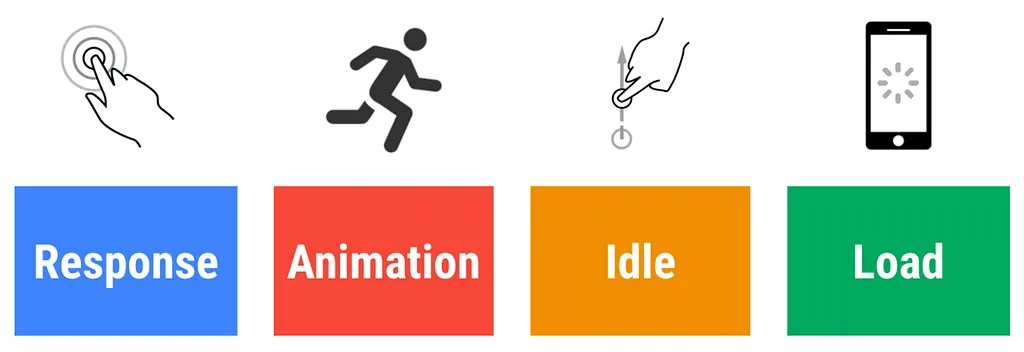
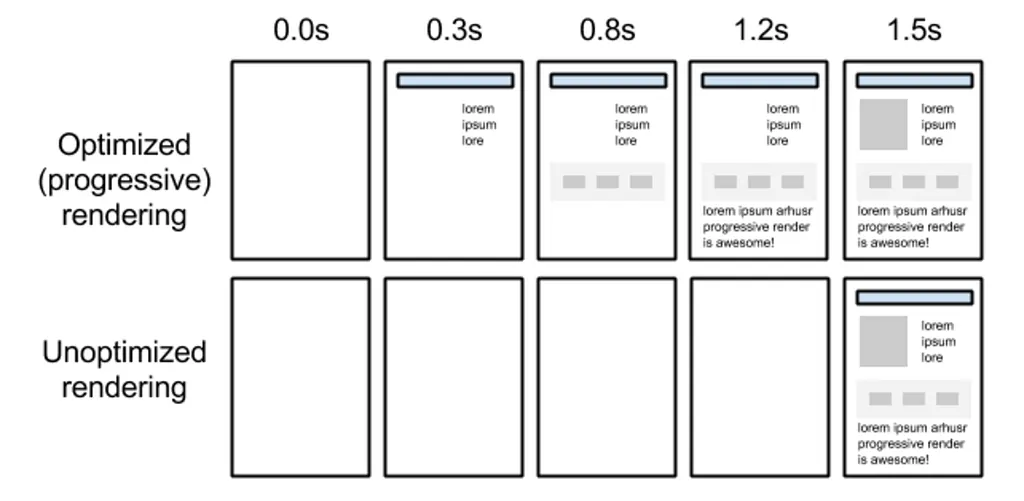
There a couple of ways to improve the performance, the two main parts would be Optimizing Content Efficiency & adjusting the Critical Rendering Path