⚡️ Build your own CLI power tool using NodeJS
Automate setting up a new machine with a small Node.js CLI that uses Enquirer and Homebrew to install the apps you always need.
By Dennis Bruijn · · 3 min read · #nodejs #cli #tutorial
Originally published on Medium.
Hopefully, some of you can relate to the following problem. You buy yourself a new machine or get a new device from a client to work with. You go to the process of installing, updating, and configuring the device. Even worse when you’re done store your work in a safe place, sign off across the system and format your SSD.
What are we using
NodeJS
NodeJS is a cross-platform JavaScript run-time that executes JavaScript code outside of the browser. NodeJS lets developers use JavaScript to write command-line tools and server-side applications.
Enquirer
Enquirer is fast, easy to use, and lightweight system to build stylish, intuitive, and user-friendly prompts.
https://github.com/enquirer/enquirer
What are we building
For this use case, we can make ourselves a powerful command-line interface to automate some of these tasks. Since NodeJS allows us to write and execute code that primarily interacts with the system disk and network, tasks like downloading and installing binaries will become a breeze.
Setup a new project
Make sure you’ve got a terminal of choice set up (I use Zsh with oh-my-zsh). Also, get homebrew for Mac so we can fetch binaries and install them via CLI commands.
1.) Create a new directory called “node-power-cli”
$ mkdir ~/Projects/node-power-cli
2.) Traverse into that directory
$ cd ~/Projects/node-power-cli
3.) Grab the MIT license and add it to the project
$ npx license mit > LICENSE
4.) Add a .gitignore file to the project
$ npx gitignore node
5.) Generate a new package.json file
$ npm init -y
6.) Create a new file
$ touch power-cli.js
7.) Allow the file to be executed
$ chmod u+x power-cli.js
8.) Edit the new file
$ code power-cli.js
#! /usr/bin/env node
// will tell shell enviroment which program it needs execute this, in our case it's node
// always run your code in strict mode
"use strict";

console.log(`My first Node CLI app 🎉`);
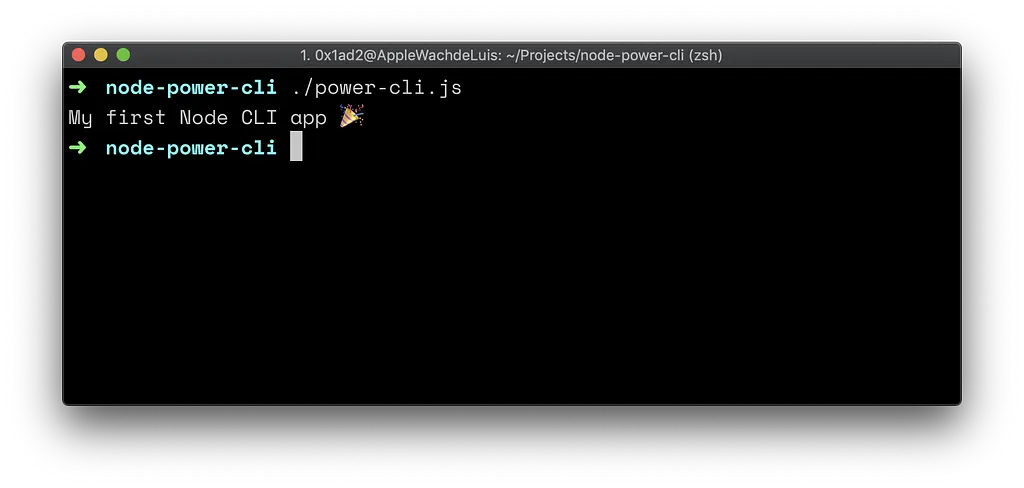 To execute your NodeJS script, you can use the following command $ ./power-cli.js
If you’ve not seen npx before, it searches locally to see if there is a command to run and executes it. If there is no local command, it will try to download, install the command from npm, and run it. This is useful when generating new projects and saves you from globally installing a lot of stuff.
Add and use Enquirer
1.) Install Enquirer
$ npm install enquirer --save
2.) Define your list of frequently used binaries
// make a list of frequently used binaries
const frequentlyUsedBinaries = [
  "iterm2",
  "visual-studio-code",
  "google-chrome",
  "zsh",
  "whatsapp",
  "spectacle",
  "spotify",
  "slack",
  "github",
  "node",
  "grammarly",
  "figma"
];
3.) Add multi-select prompt
// require the enquirer module
const { MultiSelect } = require("enquirer");

// create a new multi select prompt
const multiSelectPrompt = new MultiSelect({
  name: "value",
  message: "Select all the binaries that you want to install",
  choices: frequentlyUsedBinaries
});

// run the prompt and handle the answer
multiSelectPrompt
  .run()
  .then(binaries => {
    console.log("Selected binaries:", binaries);
  })
  .catch(console.error);
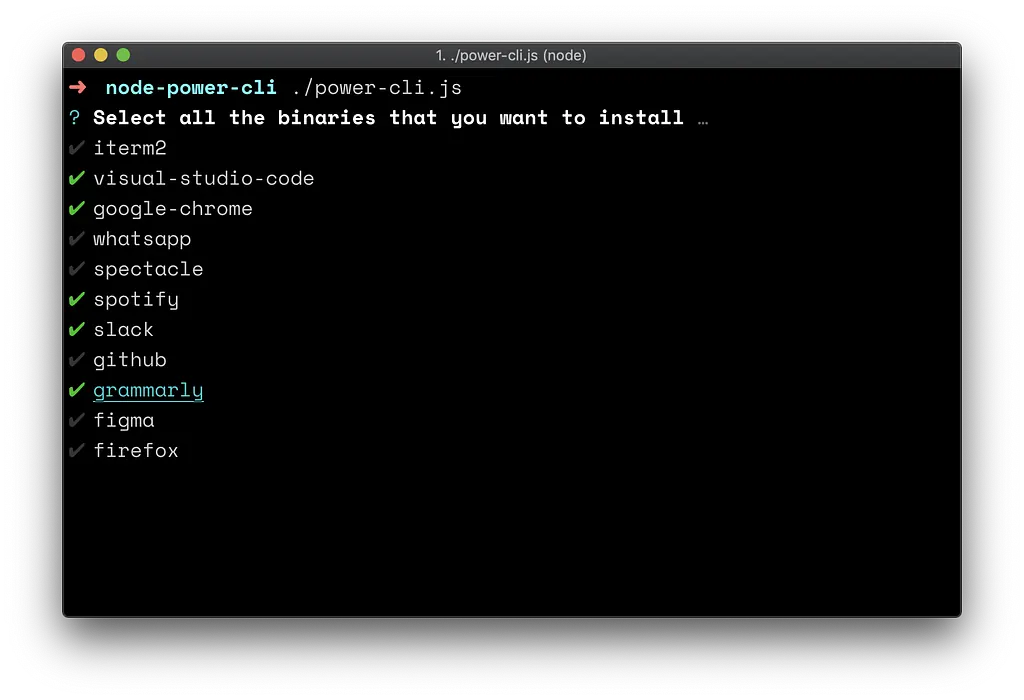 To execute your NodeJS script, you can use the following command $ ./power-cli.js
Execute CLI commands
Now we get an answer from the multi-select prompt, and we can parse that to a function to generate a command-line string. After that use brew to install all the selected binaries.
// require utility tools and child_process exec to execute CLI commands
const util = require("util");
const exec = util.promisify(require("child_process").exec);

// define a async function execute commands
async function executeCommands(CommandLineString) {
  const { stdout, stderr } = await exec(CommandLineString);
  console.log("Standard output:", stdout);
  console.log("Standard error:", stderr);
}

// create command line string
function getCommandLIneString(binaries) {
  return binaries
    .map(binary => {
      return `brew cask install ${binary} &&`;
    })
    .join()
    .replace(/,/g, " ")
    .slice(0, -3);
}

// run the prompt and handle the answer
multiSelectPrompt
  .run()
  .then(binaries => {
    console.log("Selected binaries:", binaries);
    console.log("Installing them all");
    executeCommands(getCommandLIneString(binaries));
  })
  .catch(console.error);
Run it!
Now we’re done and we can run the program and see if it works the way we expected.
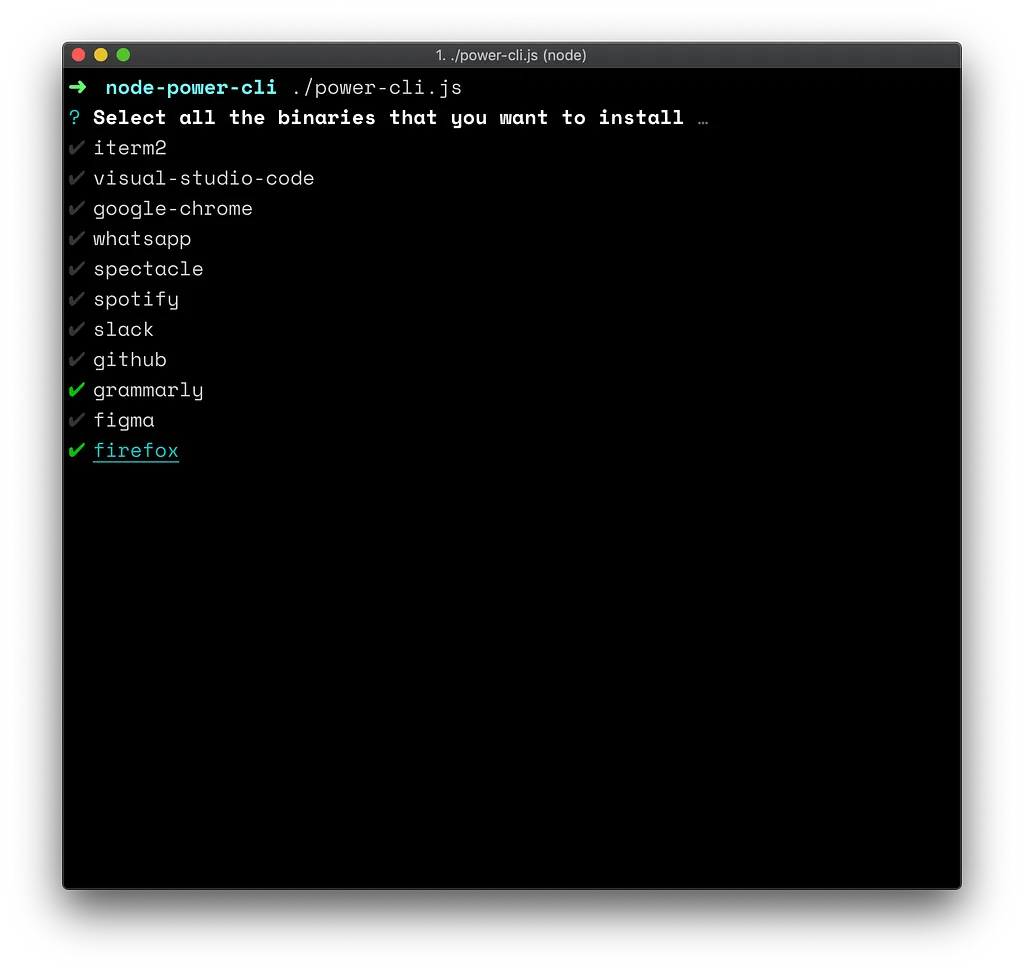 Select the binaries that you want and hit ENTER
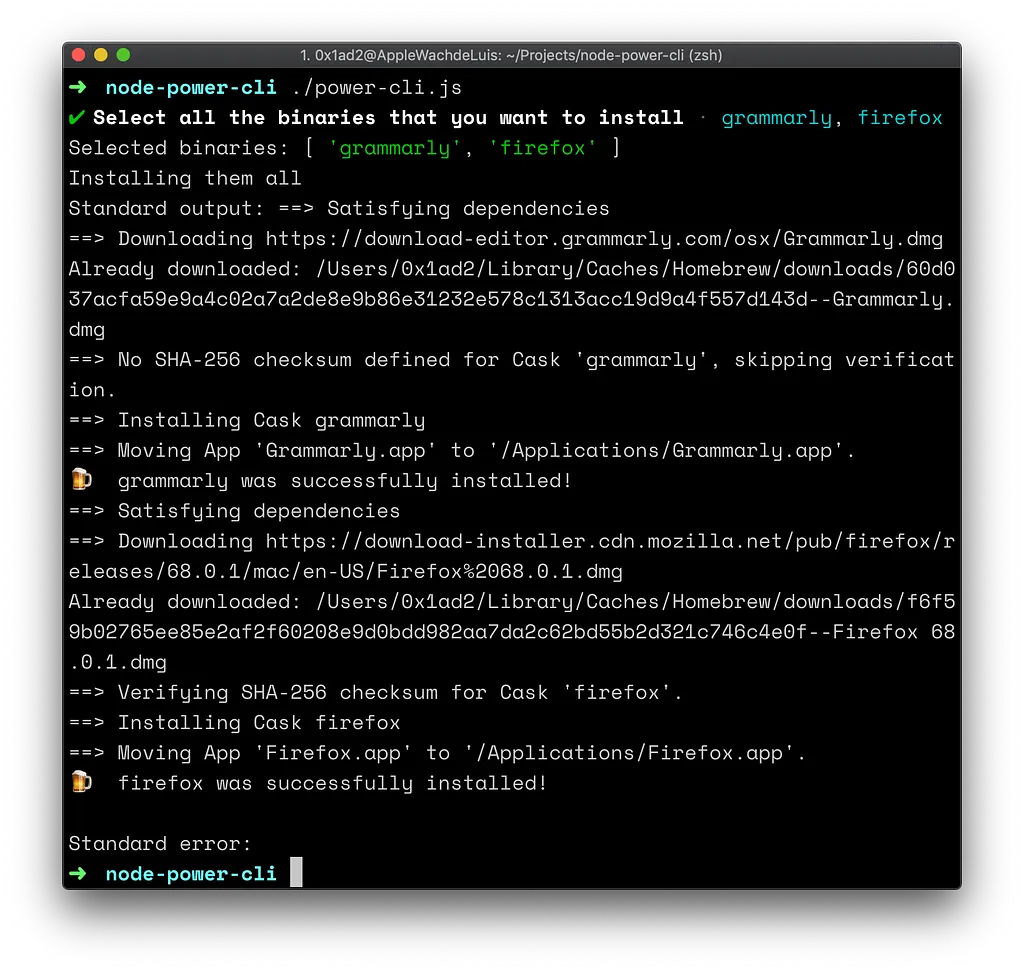
That’s it. There’s your first “friendly & powerful” command-line tool that you can extend with all the possibilities you’ve got in mind — E.G., a feature that sets your default user preferences for macOS.
If you have any questions? Either comment on this story or tweet me at @0x1ad2 If you want to check out the project yourself here’s the Github repository.